Create a form
Design a survey in OrionGIS Collect — describe it in a sentence and let AI draft it, or build it question by question — then edit and publish it.
Collect is OrionGIS's field data collection tool. A form is the survey your team fills in. This page covers designing one.
#Your forms project
Forms live in a forms project. The first time you open Collect you are offered Create your Forms project; after that all your forms sit under it. The Forms page lists them with how many submissions each has received and when the latest arrived.
#Start a new form
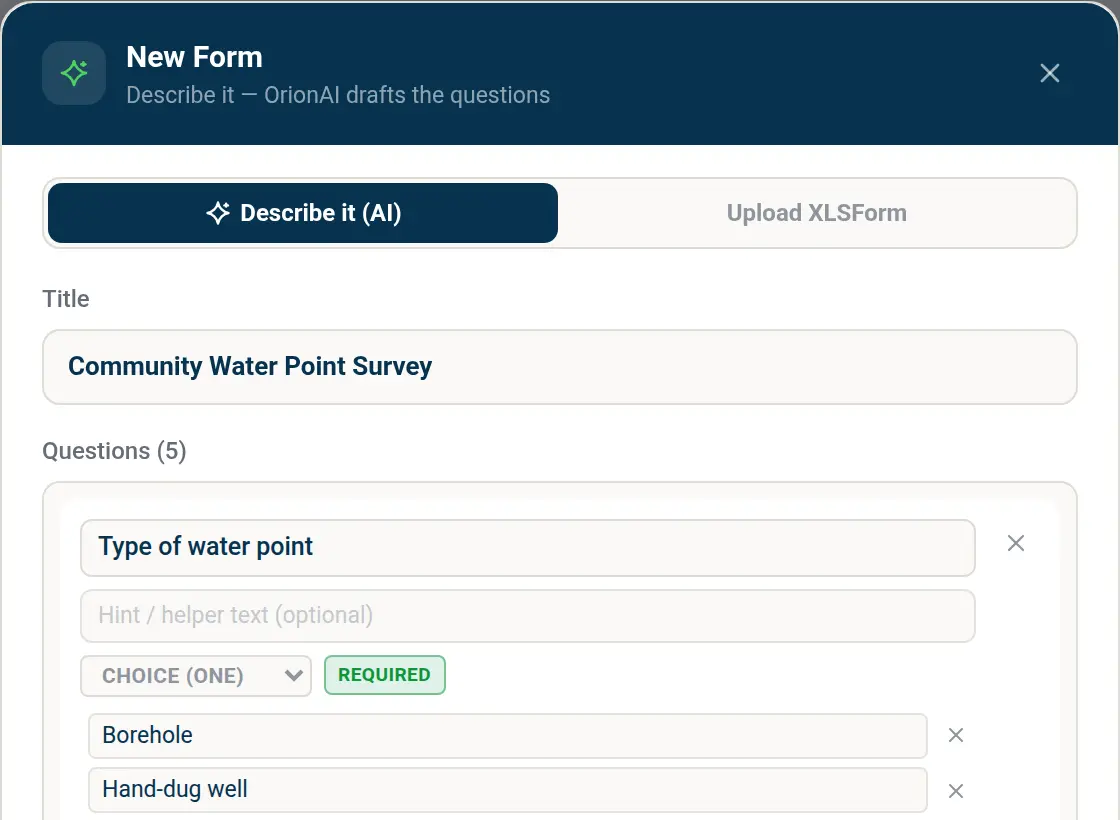
Choose New Form. The dialog has two tabs:
- AI Generate — describe the survey and let AI draft it (below).
- Upload File — upload an XLSForm (
.xlsx) or XForm (.xml) file you have made elsewhere, then choose Save as Draft or Upload & Publish.
#Draft a form with AI
- In the AI Generate tab, describe the survey in plain language — for example "A household water-access survey: household size, distance to nearest water point, water source type (borehole / river / piped), and GPS location."
- Choose Generate Draft. Orion AI drafts the questions, their types and the structure.
- Review and refine the draft, then choose Save as Draft or Publish Form.
#Refine and edit
A new form opens as a draft. In the draft editor you can:
- add, remove and reorder questions and change their types;
- add hint or helper text to a question;
- choose Edit with Orion AI and describe the change you want ("add a question about water treatment") instead of editing by hand.
A draft is private and can be changed freely — nothing is collected yet.
#Add a location question
If you want to map the answers, include a GPS location question (or, if your form looks coordinates up from a list, latitude and longitude fields). See Form data as a map layer.
#Publish
When you are happy, publish the draft. It becomes the live form and gets a version number. On the form's page, Upload New Version replaces it with a new file, and Version History lists every version. Changes you make in the draft editor are saved with Save New Draft and go live with Publish Update.
#Form state
A published form is in one of three states, which you set from the form's page:
| State | Meaning |
|---|---|
| Open | Accepting submissions (the normal state). |
| Closing | The form is no longer offered to new collectors, but people who already have it can keep sending submissions. Use it to wind a survey down. |
| Closed | Nothing more is offered or accepted. |
Next: Collect data in the field.
#Change a form with OrionAI
On the form's page, ask OrionAI to change it, for example "add a GPS location question and make the phone number required", or click Suggest missing questions. A card lists every question that will change. Press Confirm to update the form's draft, then publish the draft to make it live. Undo restores the previous draft. See The Ask OrionAI panel.
#Manage forms
Each form row and detail page has an actions menu: edit the design, rename its display name, duplicate, archive or delete. These controls appear only within teams you own. They also appear for linked forms inside a project.
Renaming changes the name shown in OrionGIS, including project form lists; it keeps the form ID and the published title on collectors' devices. Change and publish the form design if you need to change its on-device title.
A duplicate is a new draft in the same team, using the latest draft design when one exists, or the published design otherwise. Questions and attached files are copied; lookup attachments are copied as file snapshots. Submissions, app-user assignments and public links are not copied. Review and publish the draft when ready. File copies are limited to 25 MB of attachments.
Use search and selection on the forms list to archive or delete several forms within a team. Archived forms lists items you can restore. Archiving affects the team's OrionGIS lists, including Home and linked project lists; it keeps existing collection links and continues accepting submissions. Use Accepting submissions on the detail page to close collection.
Deleting a form moves it and its submissions to the collection service's Trash. Collection and public links stop working, and the service purges the deleted form after 30 days. The confirmation explains this before any deletion; use Archive when you only want to tidy your lists.
Something missing or unclear? Tell us — we update the guide as the platform grows.