Map Studio basics
What Map Studio is, how to open a map in a project or start a scratch map, and how the workspace is laid out.
Map Studio is OrionGIS's map editor. It runs in your browser — nothing to install — and covers layers, styling, labelling, editing, print layouts and publishing.
#Opening Map Studio
Choose Map studio in the sidebar, or Open Map Studio inside a project. Before the editor opens you choose where the map belongs:
- A map in a project. Pick one of your projects and create a new map in it, or open one of its existing maps. This is the normal route, and it gives the map access to the project's data — including form layers.
- A quick scratch map. A map with no project, for a quick experiment. You can build, save and publish it; the first publish files it into your My maps project, and you can move it to another project any time.
You can also start from a project's Maps tab with Create map, or straight from a dataset or form with Create map in the Data tab.
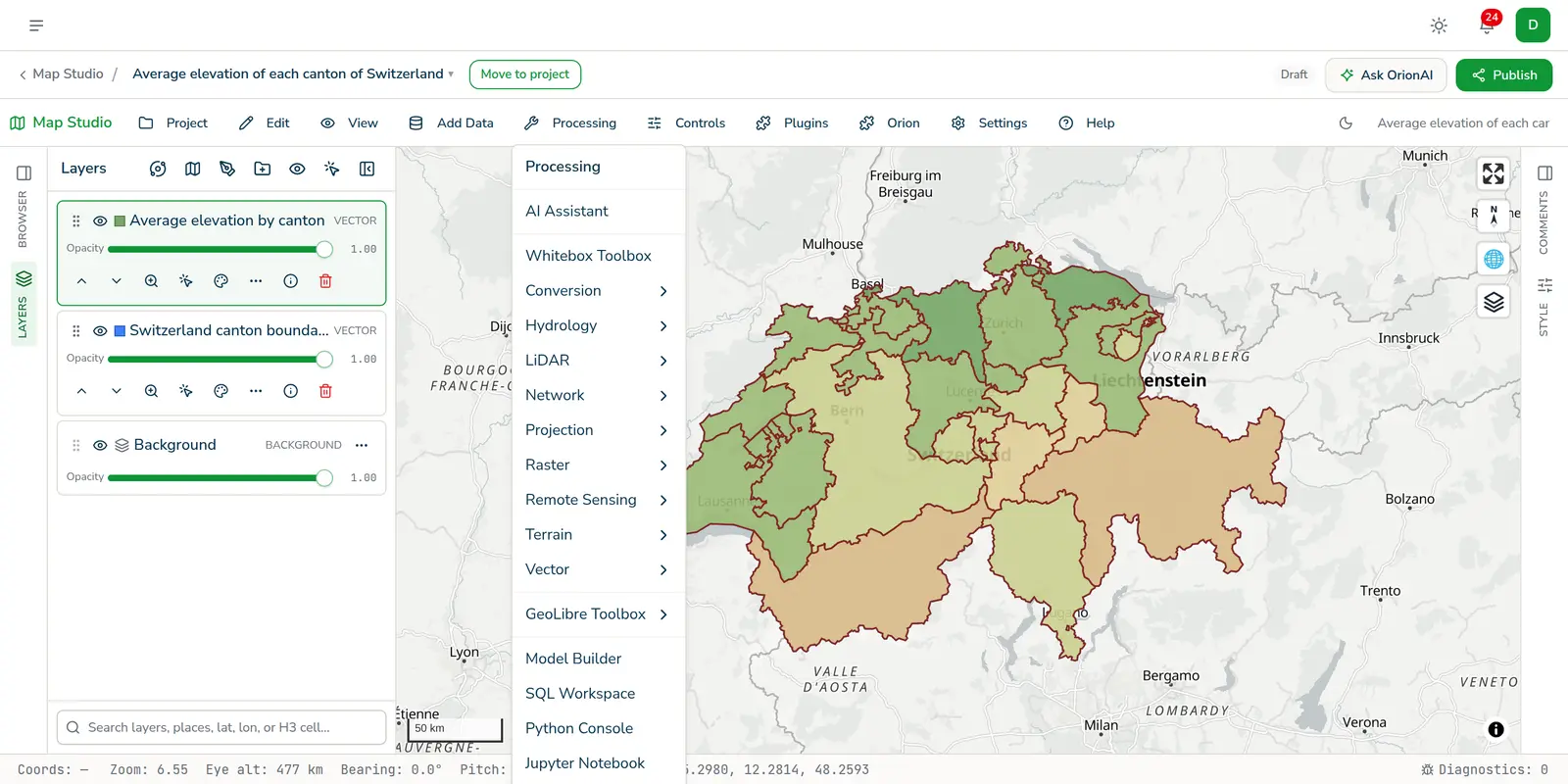
#The workspace
- A large map canvas in the middle.
- A layers panel to add, reorder, show and hide layers and open their styling.
- A This project panel listing the project's data — datasets and form layers — that you can add to the map with a click.
- Tools to draw, edit and measure, and to import files.
- OrionAI, which makes maps for you (see The Ask OrionAI panel). Ask in plain words ("population density by county in Kenya", "schools more than 5 km from a health facility") and it shows its plan, searches all of Orion's data (datasets hosted on Orion and open data streamed live from its publishers), adds administrative boundaries for any country (from the national outline down to districts and finer, where the country publishes them, from OrionGIS's boundaries database: geoBoundaries, CC BY 4.0, plus the official UN OCHA boundaries for the levels geoBoundaries doesn't cover), runs the analysis (counts and densities per area, joins, buffers, overlays, nearest distances, terrain, satellite imagery indices and change, land cover and watersheds, measured in true metres and km²; see what OrionAI can work out), styles the result and zooms to the place. Each step shows as a short line in plain words. It finishes with a result card explaining what the map shows and what its colours mean, with a colour key, and naming the datasets it used, with publisher and licence, with Undo (puts the map back as it was before the request) and Publish. A request stops after a set number of steps, or sooner if the data it needs is not in Orion, and OrionAI tells you what is missing.
- The Print Layout view, where you compose the finished map and publish it.
#Saving
Your map saves to the project, and the map's thumbnail on the project page is refreshed from what you drew. Map Studio also saves on its own about 30 seconds after you stop editing, and when you switch away from or close the tab. The bar at the top shows Saving… and then Saved with the time. A few saves need a decision from you first, such as keeping a very large dataset inside the map or keeping a service password. Map Studio leaves those for you to save with Save now (next to the save status) or Ctrl+S. If your map is published, autosaves don't change the published version. Choose Save now or Update published map when you're ready for viewers to see your changes. A map you have not published is a draft that only you can see.
#Next
#Getting around
Map Studio keeps OrionGIS's top bar (search, notifications and your profile) and a slim sidebar. Its own toolbar has the single Ask OrionAI button, which opens the Ask OrionAI panel working on your current map. Ctrl/Cmd+K opens the same panel. Use the menu button to open the full sidebar. If you follow a link out of Map Studio, your map is saved first.
When the map is ready to share, choose Publish in the top right. It opens Print Layout, where you compose the page and publish it. See Publish and share a map.
#Manage your maps
Choose Your maps in the sidebar to search all your maps, including scratch drafts. Maps load as you scroll. Each card has an actions menu: open, rename, duplicate, move to a project, archive or delete. The same menu appears on recent maps on Home and maps inside projects.
Archive hides a map from Home and project map lists while keeping the document and any published share link. Open Your maps → Archived maps to restore it. Archiving does not unpublish a shared map.
Select several maps to archive, restore or delete them together. Delete asks for confirmation and permanently removes the map and its published version. If an operation fails, those maps stay selected so you can retry.
Something missing or unclear? Tell us — we update the guide as the platform grows.